01
Biological networks
Choose a species, research scale and versioned source. Select cells or brain regions, review their connections and continue in a research notebook.
Species · structure · your research targetExplore biological networks NEXT BRAIN Computational Neuroscience & NeuroAI
Computational neuroscience & NeuroAI
Start from biological structure, a neural model or supported observations. Define your research target, train spiking networks and compare results, keeping sources, assumptions and findings together.
Choose the tools your question needs. Each workflow defines its supported inputs and outputs.
The open-source engine behind Next Brain
Use Brian2 models across CPU, GPU, browser and distributed systems. Install Atlas on your own machines, or explore supported models through the Next Brain platform.
Explore structure.
Study learning.
Test a question.
Keep the evidence.
Start with your question
Choose the biological context, learning task, model or observations you want to investigate. Start with an available source or build within a supported workflow.
Choose a species, research scale and versioned source. Select cells or brain regions, review their connections and continue in a research notebook.
Species · structure · your research targetExplore biological networksChoose a spiking network, dataset and learning method. Follow training, inspect learned connections, evaluate performance and save a model for inference.
Learning · checkpoints · evaluationOpen Training StudioExplore neural models or design a supported experiment. Compare dynamics, learning conditions, model fits or a rerun against recorded evidence.
Models · conditions · repeated runsExplore experimentsInspect supported MRI / fMRI data and EEG / MEG channel series. Use notebooks for analysis, or supply prepared observations to a fitting or alignment protocol.
Observations · analysis · model evaluationExplore neural observationsModels, simulators & scale
Inspect the equations, network structure, source and scientific scope before running. A model package declares its sizes and backend support; execution records the configuration you actually used.
Explore the model’s authors, paper, implementation, license and fidelity notes. Inspect supported source or B2IR, fork a model into your workspace, change supported settings and publish a version with its lineage.
Keep the model version, scale, parameters, execution resource and result connected so that a change in scientific scope remains visible.
Explore the model librarySimulator integration and device support are separate. A Brian2 model’s supported operations determine which execution paths it can use.
Choose among the scales a package provides. Neuron counts, synapse counts where known, reference fractions and scope notes stay attached to the run.
Run the complete model defined by that package and configuration. Its declared neuron and synapse counts identify the selected size.
Use a declared fraction of a reference network. The package explains what is scaled and what differs; a proxy result is labeled with that relationship.
Study an explicitly bounded part of a larger model or circuit, retaining its scope and the structures excluded from the study.
A smaller proxy is not a full-scale reproduction. Computational model scale is separate from biological research scale, which defines whether source nodes represent cells, fragments or brain regions.
Browser, CPU, GPU and distributed support varies by model and scale. The model page shows declared support alongside available execution resources.
Run supported packaged models and scales on your device in a browser worker. Inspect measured spikes and supported recordings without submitting a server compute job.
Explore a browser modelSubmit compatible models to an available CPU worker. Supported original Brian2 sources have a separate sandbox execution path and retain their source requirements.
Browse models and sourcesChoose an Apple or NVIDIA device where the selected model, scale and validated runtime support it. Device profiles and live worker availability are checked separately.
Inspect GPU supportInspect declared distributed support and resource profiles. Running a configuration requires a compatible registered worker group and a validated adapter.
Inspect distributed profilesAuto selects among eligible registered resources. Planned or unavailable paths cannot start a run; a listed device or MPI profile does not by itself establish runnable support.
For interactive browser exploration, Neural Lab also offers bounded on-device WASM / WebGPU simulations with its own model and equation controls.
Open Neural LabFrom biological structure to an editable notebook
Explore cellular and regional networks across species. Each source retains its specimen, native identities, measurement units and coverage; available scales and models depend on the source.
Define whether your question concerns cells, neurite fragments or brain regions.
Check the specimen, coverage and what the connection weights measure.
Use presets, source labels, types or exact IDs; inspect available anatomy in 3D.
Review the selected nodes and layers. Changes require a new reviewed graph.
For eligible targets, create a notebook with frozen inputs and run its cells.
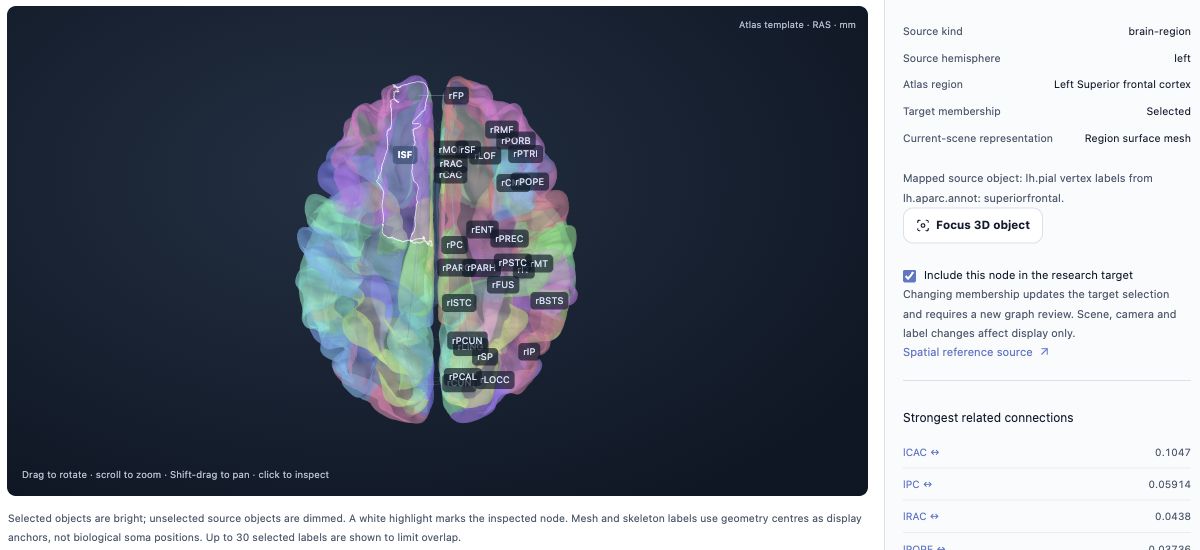
Inspect available anatomy in 3D
Inspect a cell or brain region, look up its source identity and review target membership. Use the supported selection controls to define what belongs in your study.
3D anatomy describes structure. Activity replay is labeled as model output; empirical observations remain separate. Some sources support inspection and export only. Camera and display filters change the view; changing target membership changes the research input.
Choose annotated types or exact IDs, inspect traced skeletons and study selected connections in a supported LIF notebook.
Skeleton display does not imply compartmental electrical dynamics.Explore this sourceInspect source skeletons and neuronal connectivity. A small matched subset also has separately labeled calcium-derived observations.
Exploratory dynamics are not a physiological reproduction of those recordings.Explore this sourceDefine a regional network, inspect its atlas template and replay compatible notebook results for the exact reviewed target.
A standard cortical template is not the source participant’s registered brain.Explore this sourceNeuroAI Training
Training Studio brings network design, data preparation, learning progress and model evaluation together. Choose a supported learning method and inspect what your network learns.
Study STDP learning with supported network recipes, including feature learning followed by a supervised readout.
Use a sparse spiking reservoir and train its supervised classifier. The selected structural policy determines changes to connectivity.
Train supported feedforward, recurrent and spatial networks with full or truncated backpropagation through time (BPTT).
Set the topology, neuron dynamics and supported learning method.
Choose available curated data or upload a supported dataset; define encoding and separate splits.
Follow measured learning progress and inspect connections. Save complete checkpoints to continue a job.
Evaluate with learning frozen on independent test samples; save and use the learned model for inference.
Learning & plasticity experiments compare supported neuron or connectivity conditions using paired training seeds and fixed data splits. Choose a condition using validation evidence, then confirm it on test data.
Training studies learned network behavior. Brain–model alignment is a separate experiment using supplied representations and neural responses.Structured experiments
Experiments connect a saved design to actual execution, measurements and a shareable report. Each protocol defines the inputs it accepts and the comparison it supports.
Start with a research question and a supported protocol. Define conditions, repeated runs, inputs and the comparison you want to make.
Review the design before starting.Execute the saved design across conditions and repeats. Follow progress, inspect failures and retain the record of each attempt.
Keep settings connected to measured results.Inspect measurements and variation across repeats. Compare conditions and record what the evidence supports and what remains uncertain.
See individual runs, summaries and paired changes where supported.Bring design, results and interpretation into a report. Publish a fixed, revocable snapshot or create a new draft from a supported design.
Reruns depend on available inputs, protocol and execution support.How do connection, neuron or stimulus parameters change activity?
How do supported neuron or connectivity conditions change learning across paired seeds?
Can an LIF or AdEx model predict independent voltage or spike observations?
Do supplied model representations predict a held-out neural response?
How does a new supported dynamics run differ from its saved reference?
Brain–model alignment uses precomputed representations and a supplied response target. Reference reruns compare supported saved dynamics evidence; they do not establish independent paper replication.
Choose how to develop the work
Use notebooks for editable code and analysis, Training Studio for learning jobs, and Experiments for structured comparisons. The available connections depend on the model and protocol.
Start from selected biological inputs, a model template or your own notebook. Edit Python and notes, connect a kernel and run the cells.
Open your notebook workspaceImport a saved Brian2 model cell that meets the Dynamics interface. Freeze supported companion files, choose a parameter and compare conditions.
Biological network notebooks do not automatically satisfy this model interface.A new selection, edited model or follow-up design starts new work. Its recorded source and settings let you understand how it relates to earlier results.
Explore the model libraryFrom sources to findings
Keep source identity, model assumptions and measured results together. Notebooks, training jobs and experiments retain the records and exports their workflows support. Experiment reports can publish a fixed snapshot with an interpretation and its limits.
Explore the experiment workflowPublic experiment snapshots show their included summaries and previews. Complete raw research artifacts remain owner-only where that workflow provides them. Successful execution and consistent evidence do not by themselves establish biological validity.
Models and training use supported Brian2 / Atlas paths; notebooks use an available Python kernel. Model, learning method, device and resource compatibility determine what can run.
Explore compute supportModel execution checks the selected package and scale. Training checks the network, learning method and worker. Experiments use protocol-specific execution support, while notebooks require a compatible Python kernel. Support in one workflow does not automatically make the same configuration available in another.
Explore a biological network, study how a spiking model learns, or compare experimental conditions. Start with the workflow that fits your question.